Adding an account ( Android )
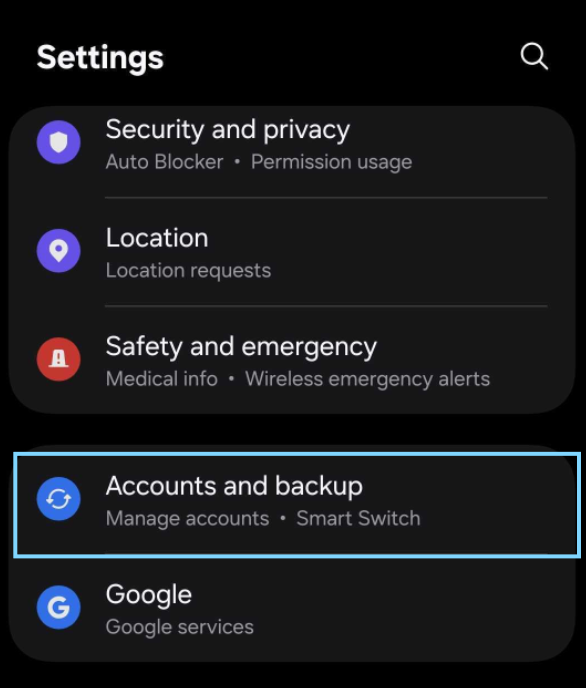
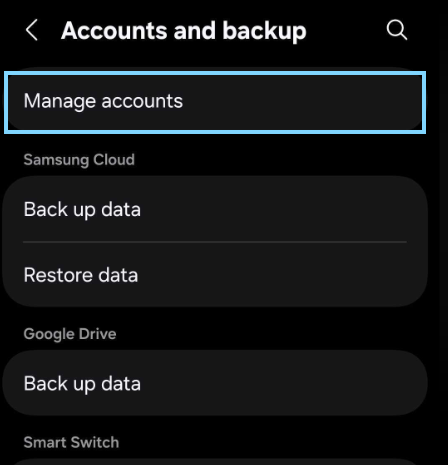
To add a new account to the Android phones default mail client ( Gmail application )
open settings,
locate "Accounts and backup"
Select "Manage Accounts "
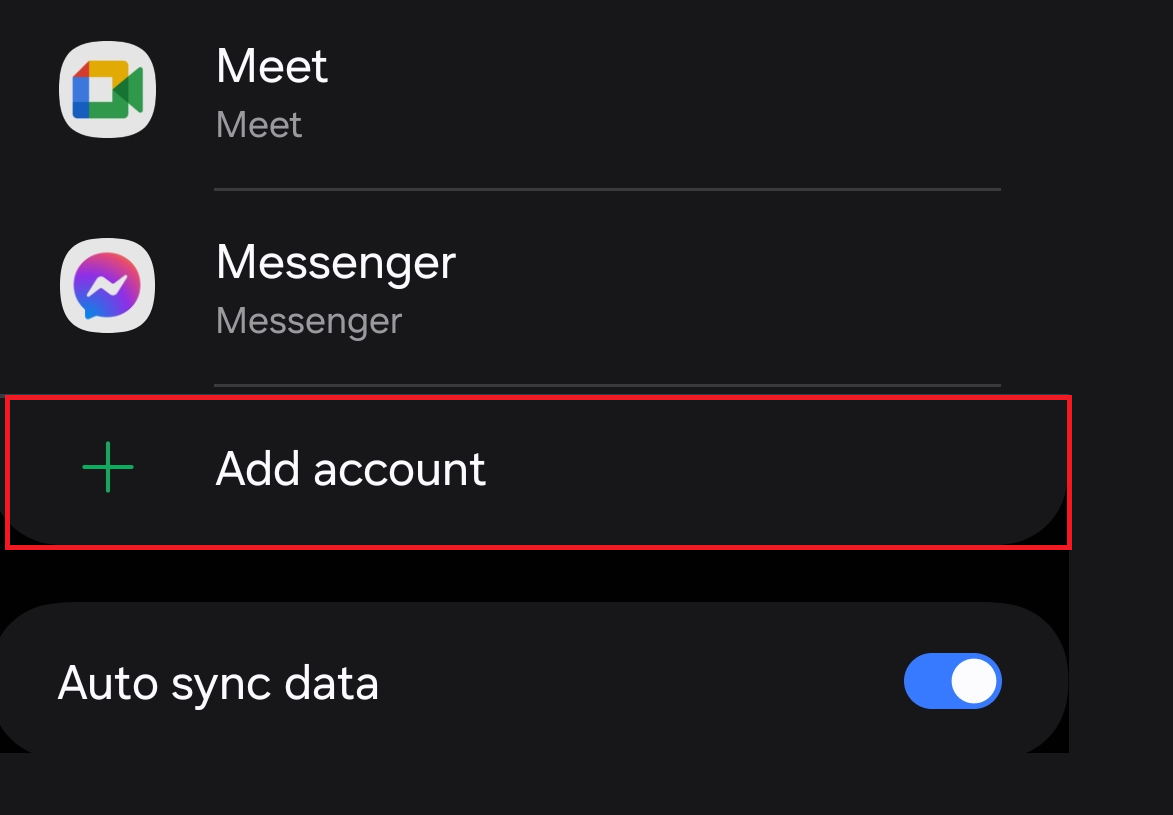
Choose the "Add account" option at the bottom of the list
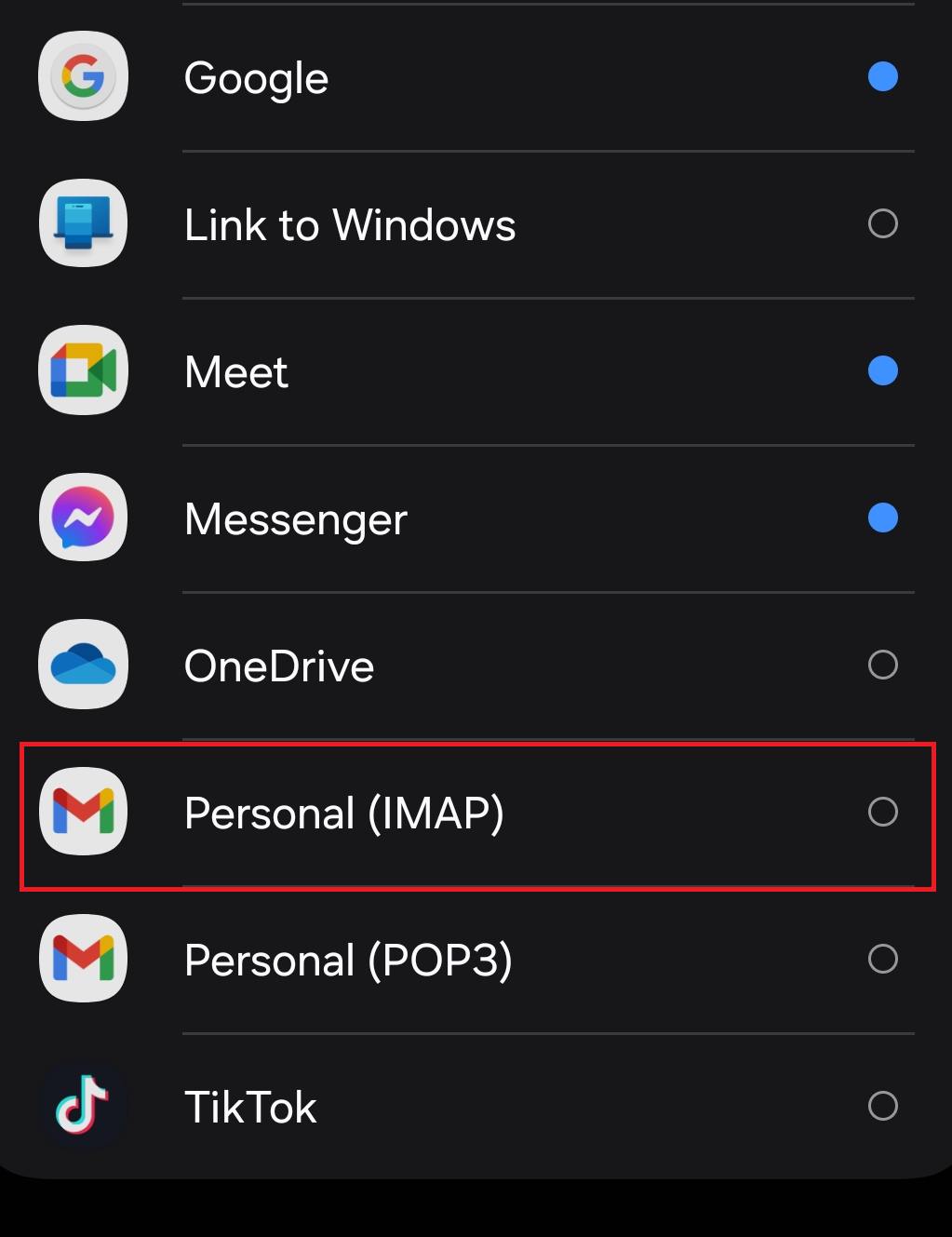
Choose the mail protocol you wish to use for your domain based email via selecting
"Personal (IMAP)" or "Personal (POP3)"
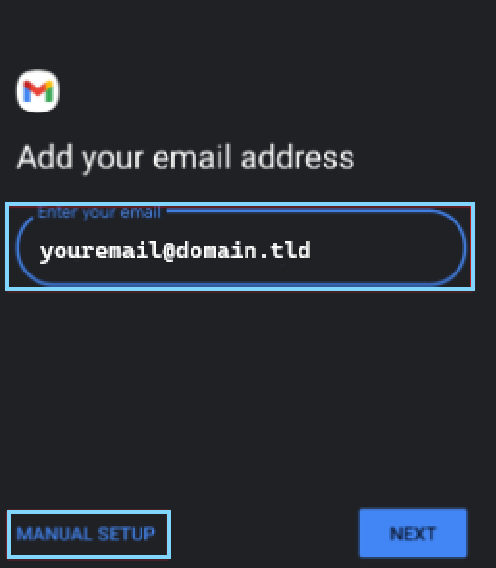
In the following screen, enter your email address and select the option for "Manual SETUP"
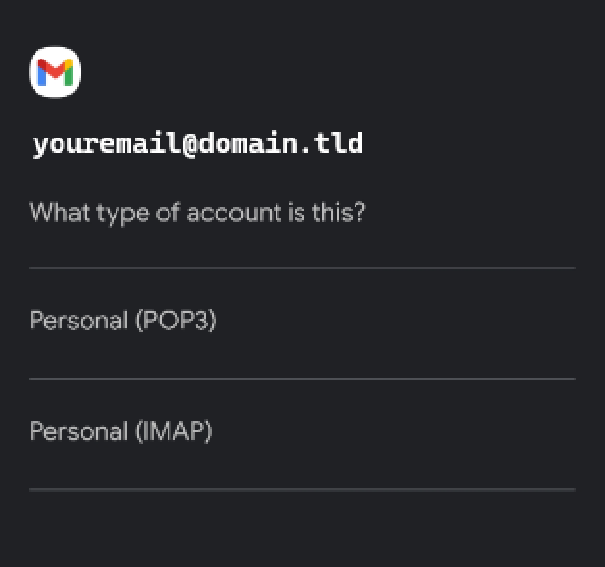
Choose the corresponding protocol inline with your previous selection.
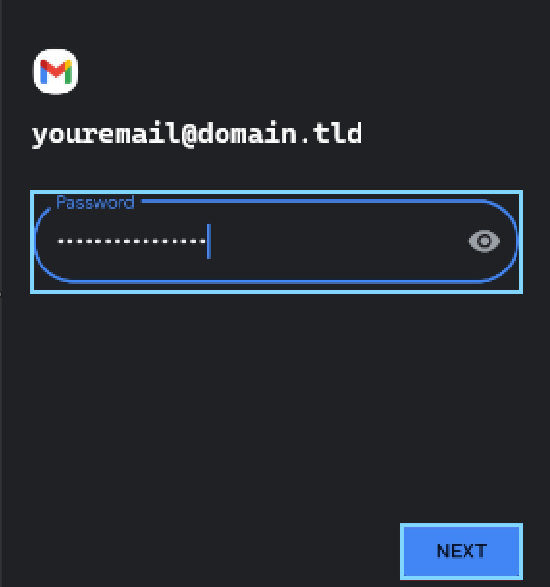
Enter the password associated to the domain based email you are attempting to set up and click on "Next"
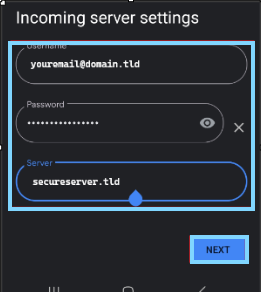
Enter the Incoming mail server settings provided to you by your email host, click on "Next"
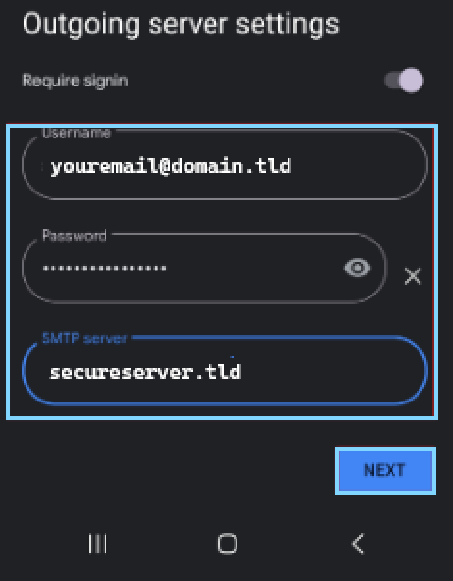
Have the customer enter the appropriate Outgoing email settings for the account then click on next
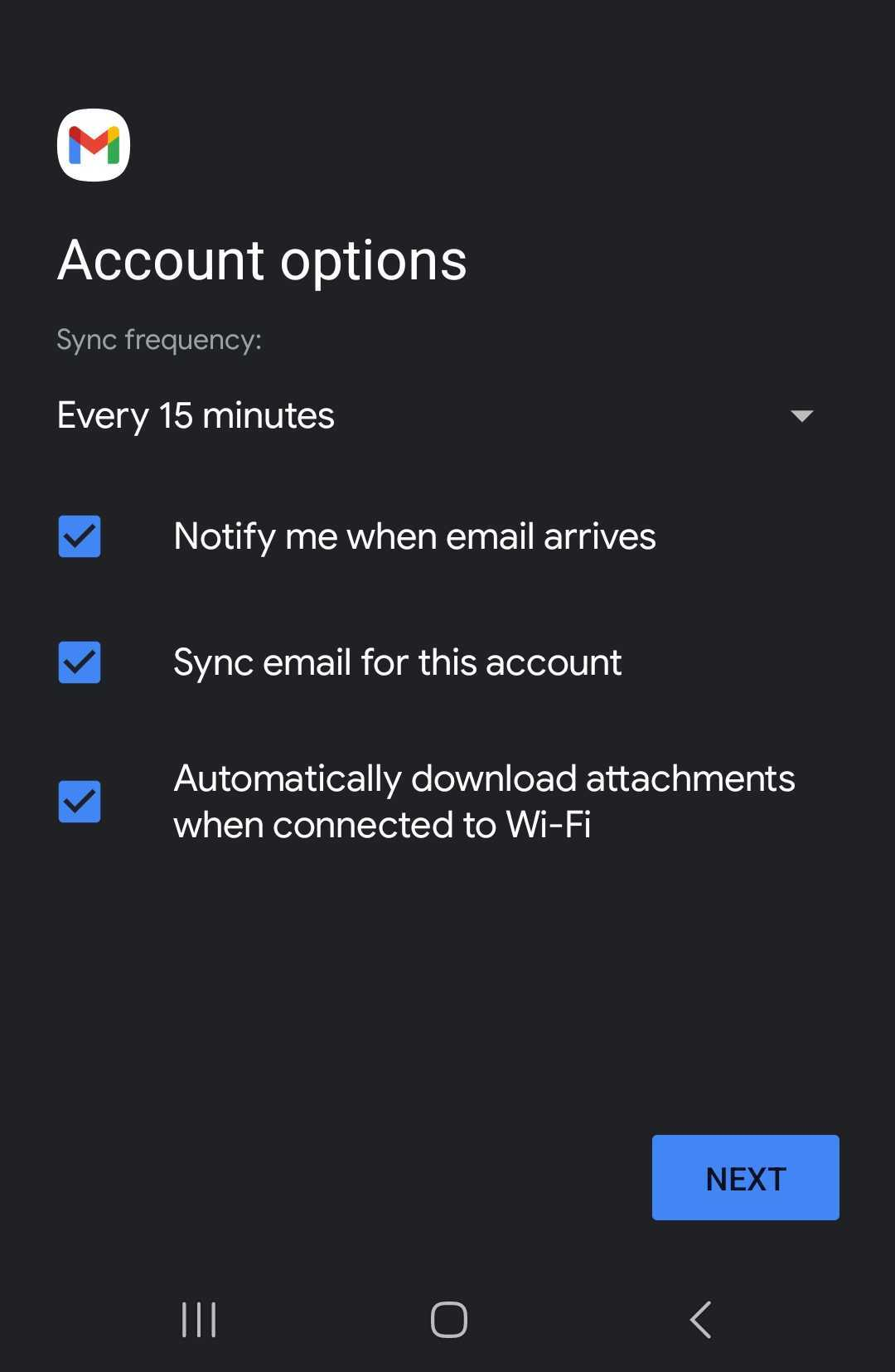
Once confirmed you can then dictate how often you wish for your account to check for new mail as well as configure your notification preferences, Once happy with the settings click on next
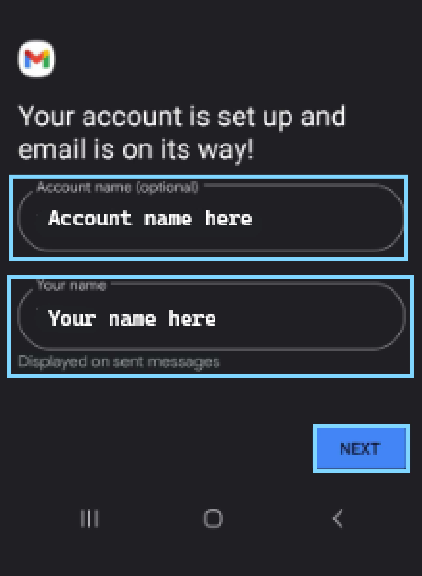
In the final screen you can assign an account name and your name to the email account, click on Next and you are ready to use your domain based email within your Gmail App.
"Account name" will be displayed as a prefix before your email i.e: bob ( bob@bob.com)
"your name" will be the name associated to the account on your device and is not displayed when sending.