Modifying account settings ( Iphone )
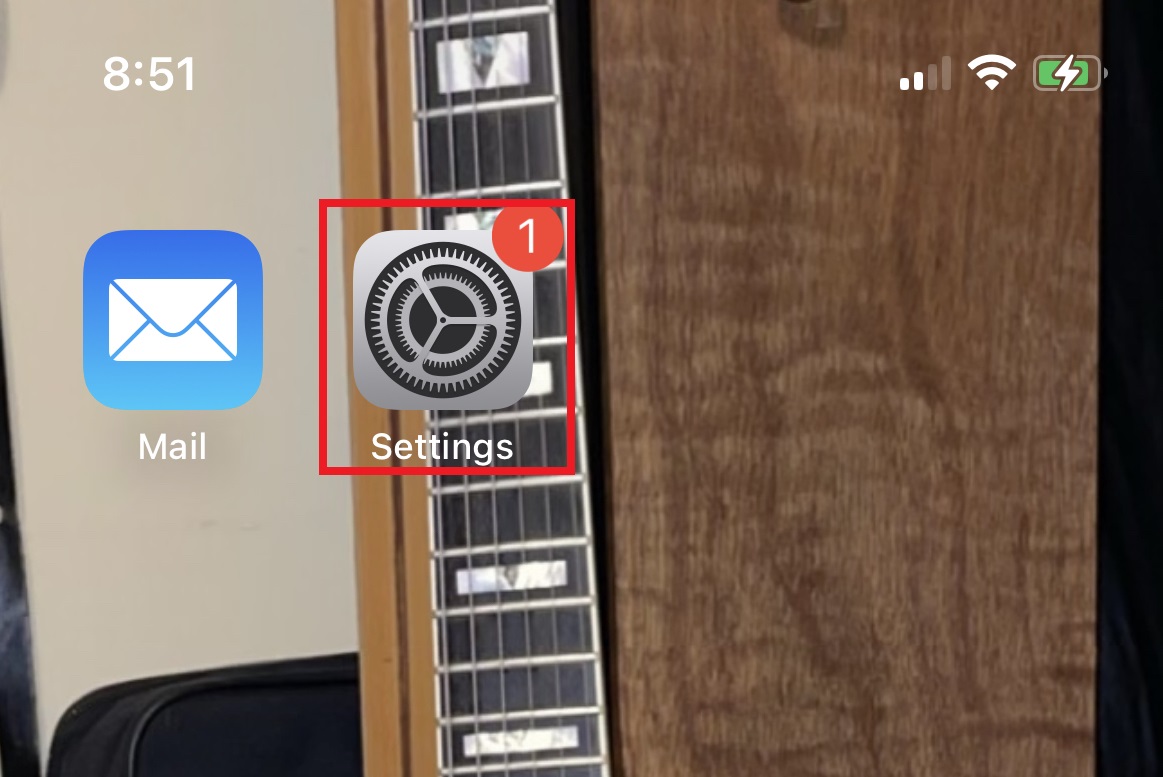
To add a new account to the Iphones default mail client ( Apple Mail ) have the customer optn settings and locate "Mail"
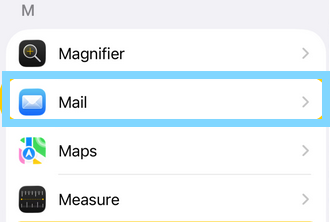
Select Mail
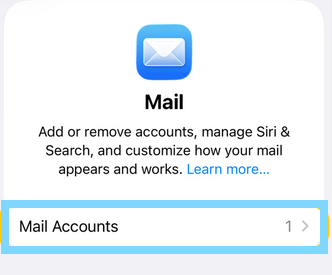
once in the "Mail" Menu select "Mail Accounts"
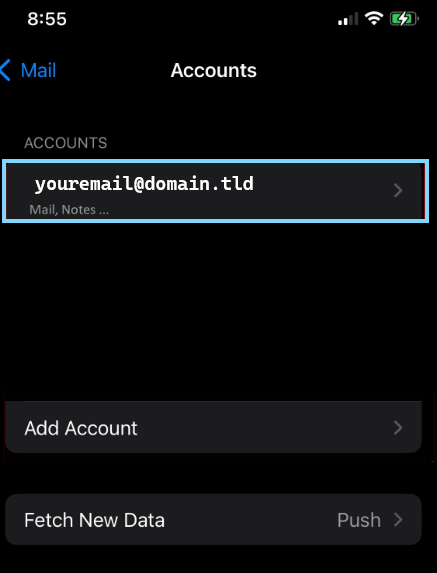
Select the account that you wish to modify the settings for
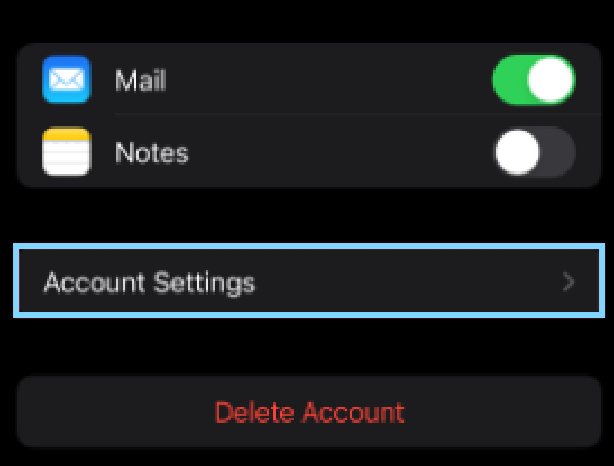
Select Account Settings
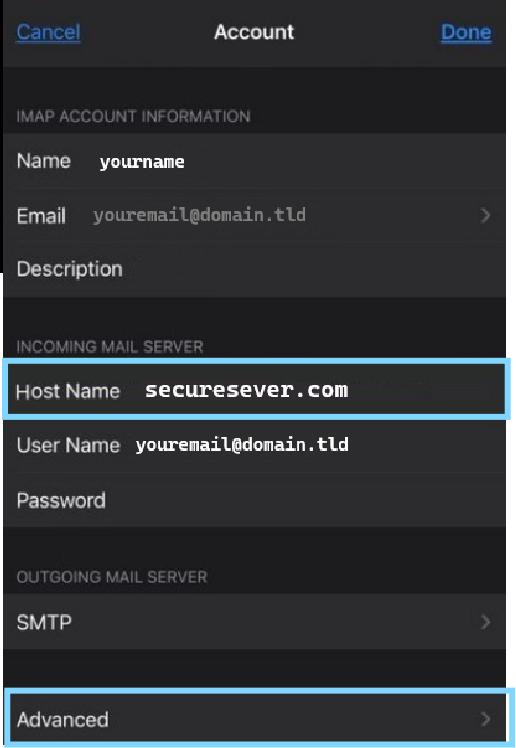
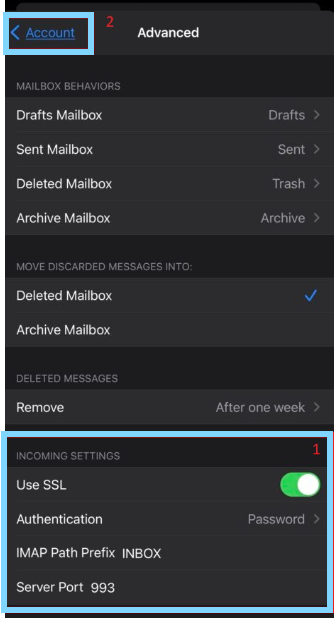
Once open you will be presented with the incoming email server settings, apply the settings in line with that of what has been provided by your email host
please note to set the incoming port and authentication method you will need to tap on "advanced"
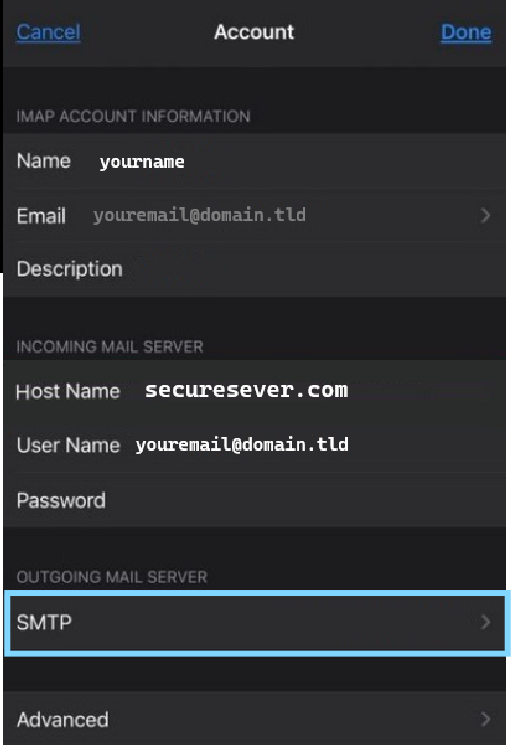
To modify the outgoing email server settings tap on SMTP then tap on the server name that is currently shown to be active or may be listed as you "primary" server
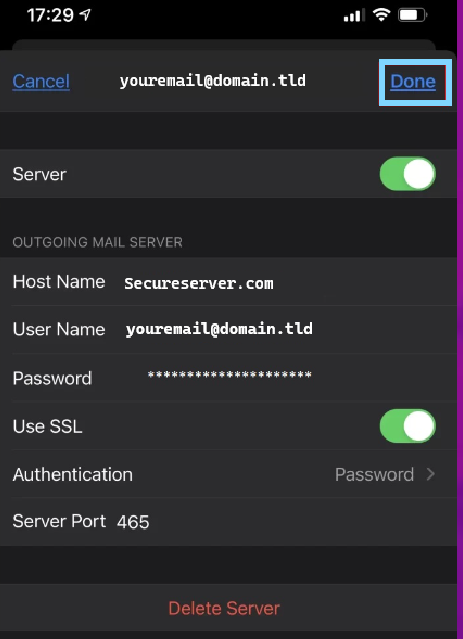
Once you have configured your outgoing settings in accordance with the info provided by your email host, tap on "Done" and you will be met with either 2 to 3 blue check marks or be brought back to the main email settings page, these will both indicate successful connection to your email server
You are now ready to continue sending and receiving emails