adding an account ( New outlook )
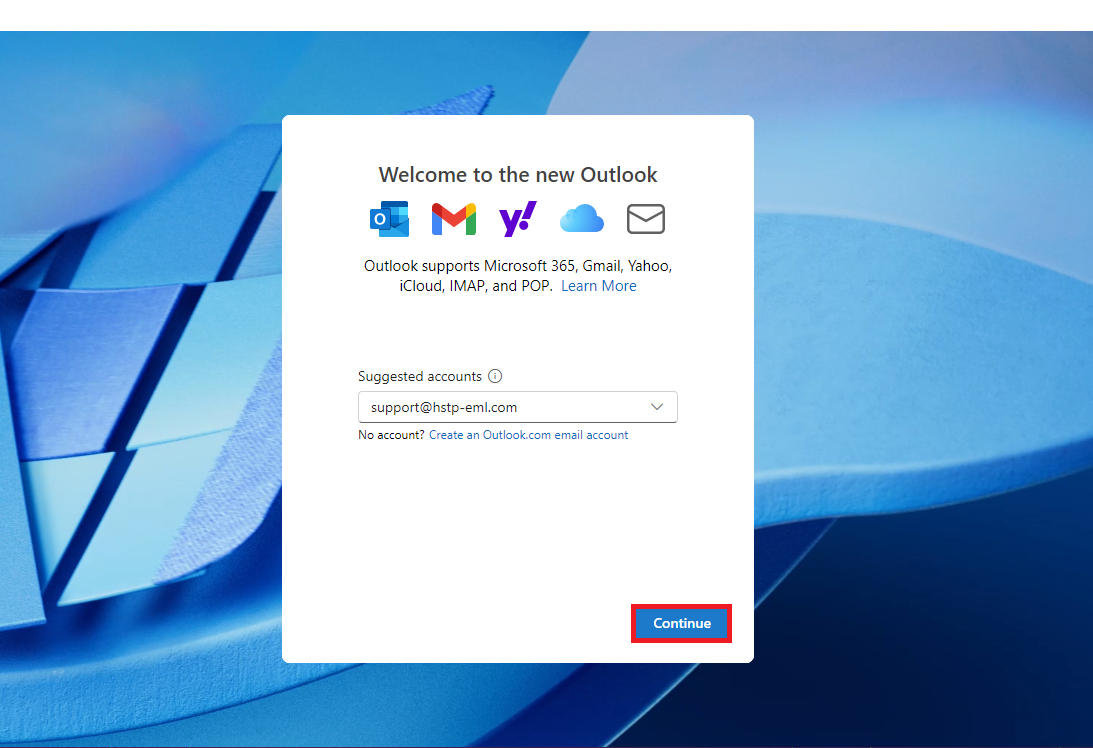
To add a New account to the new outlook when no accounts are exising have the customer open the program, they will then be presented with the screen above.
From this point they will need to enter the domain based email address they are attempting to use
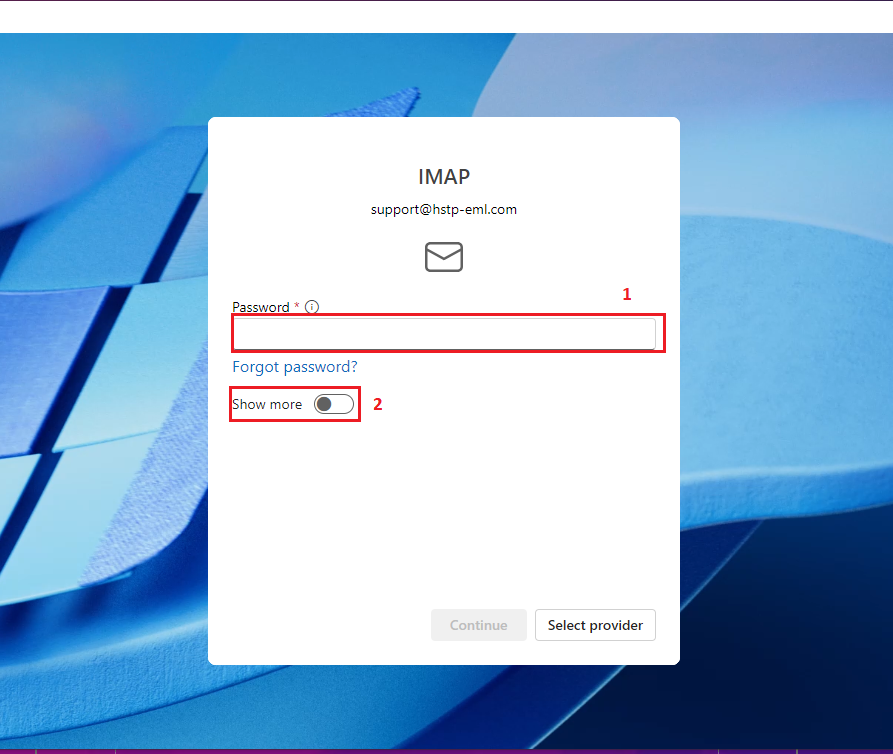
After entering the Email address and the "getting things ready" page has passed, the customer will be prompted to enter the password
Before hitting continue have the customer turn on "show More" to bring up the incoming and outgoing server settings
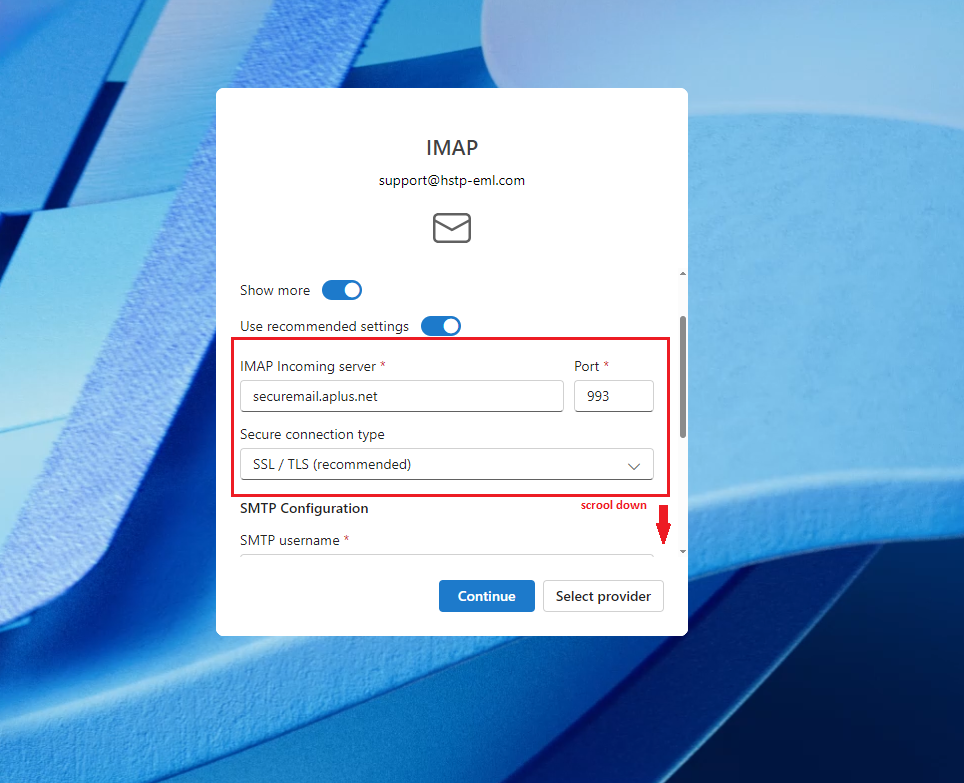
Have the customer enter the appropriate incoming SecureMail settings associated to the partner they are hosted by
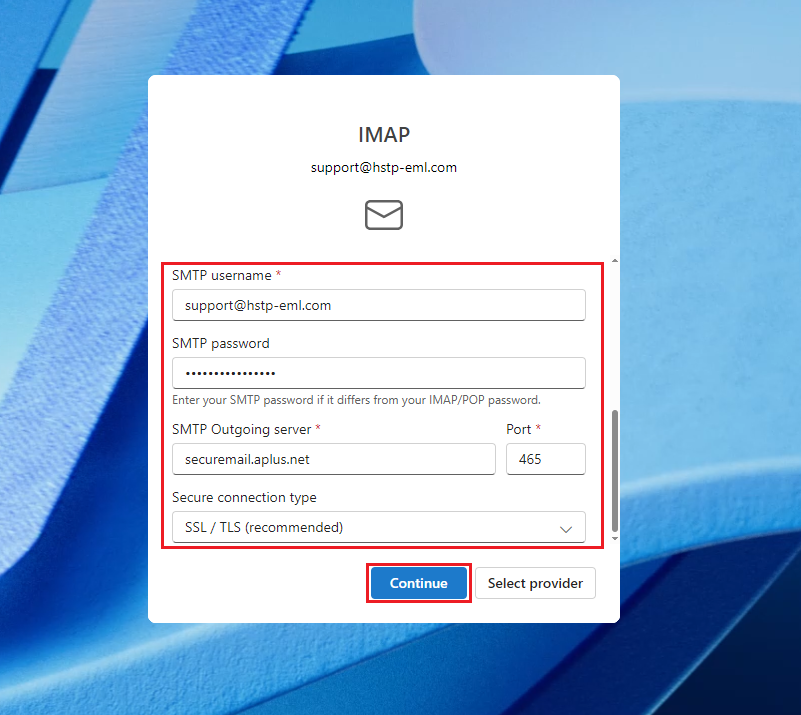
Have the customer enter the appropriate outgoing SecureMail settings for the partner they are hosted by then click "continue"
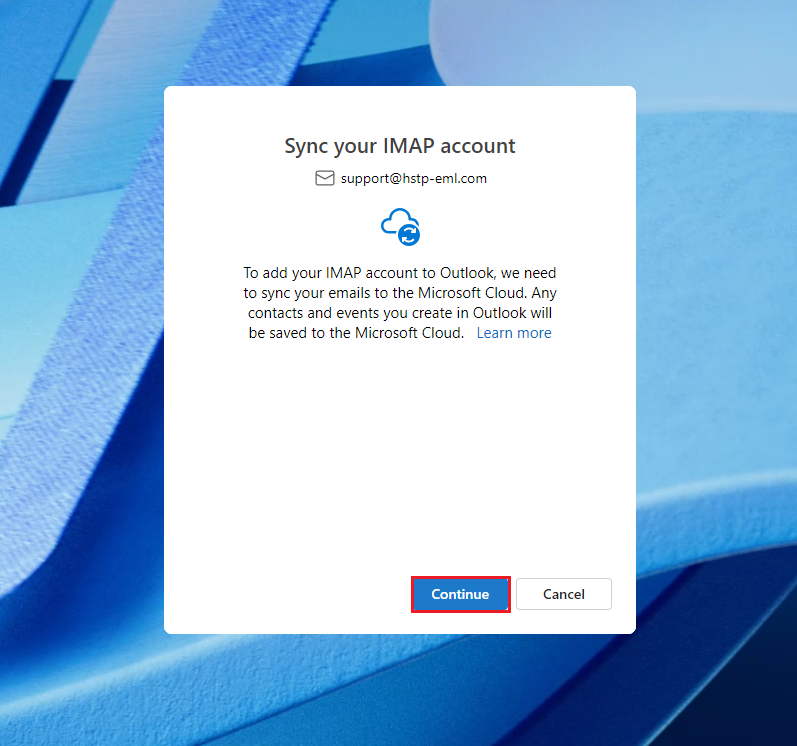
On new account creation the customer will be prompted to follow some synchronization and terms of service screens,
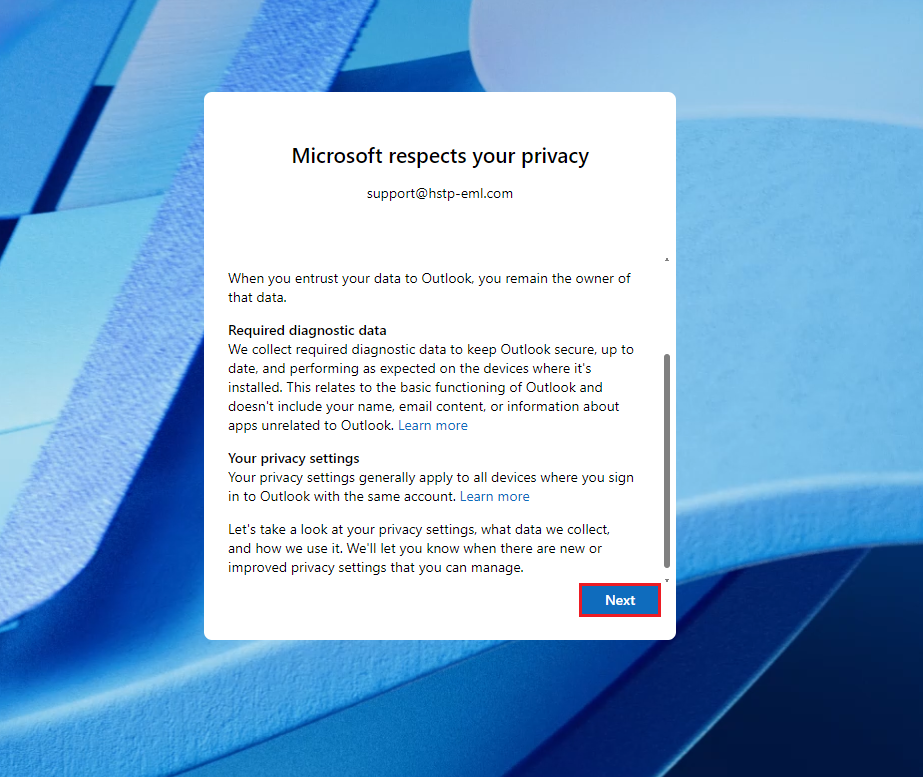
We can not advise on 3rd party agreements the customer will need to choose the options that apply to them in these screens
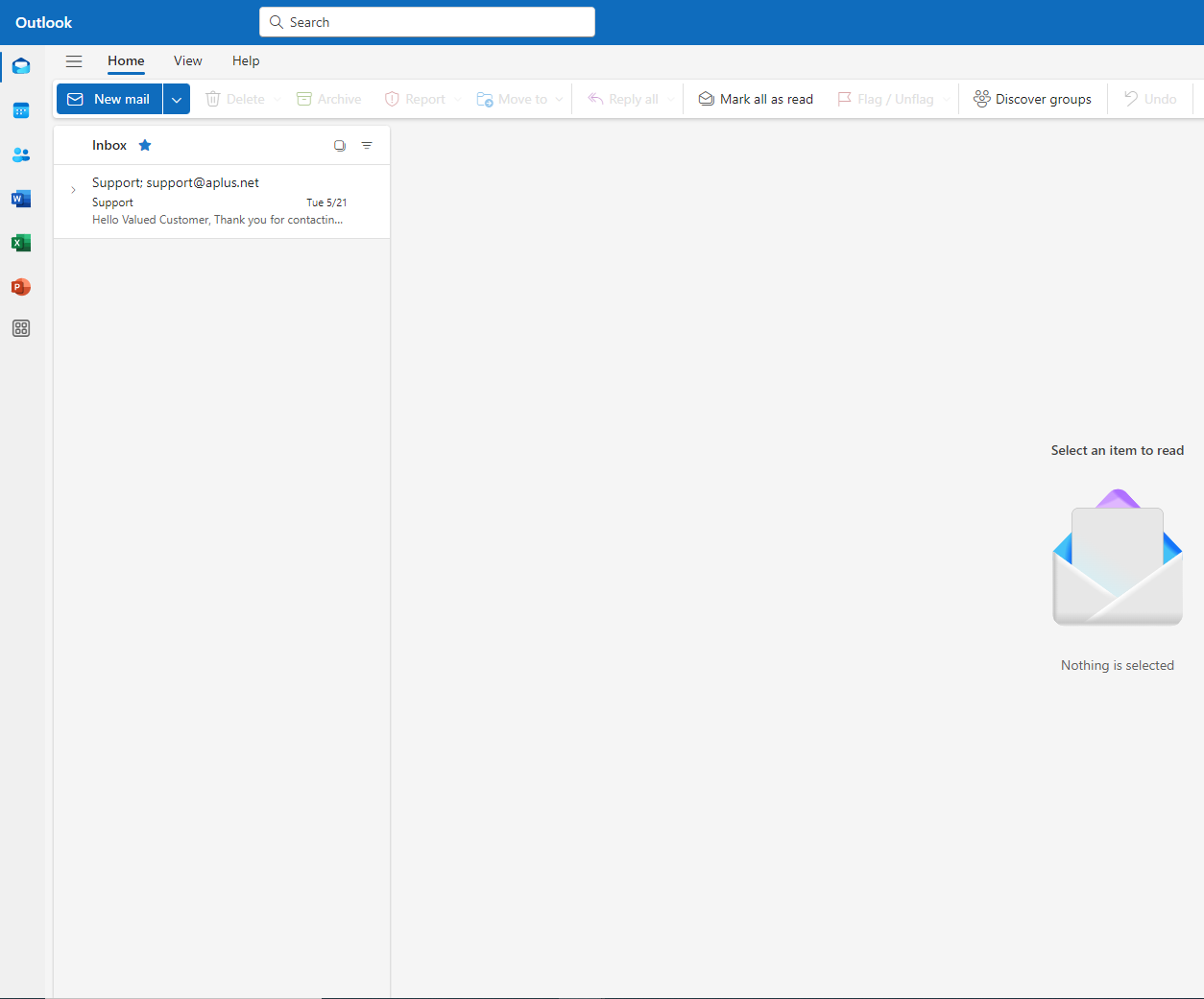
After completing the TOS screens the customer will be brought into the new mailbox
if the customer is new to the new outlook there is a built in tutorial/tour that will load in the bottom right of the mail box to familiarize themselves with the program if they wish