adding an account ( outlook classic )
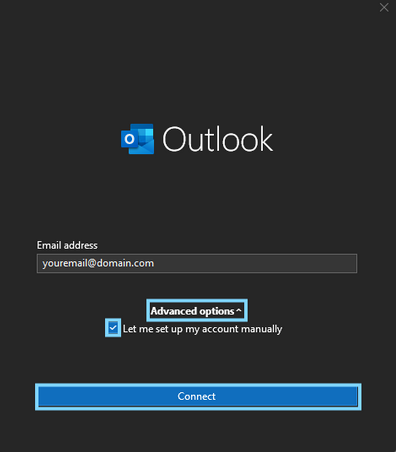
1- Upon opening outlook you will be presented with a screen prompting you to enter your domain based email address
2- Check the option for "let me set my account up manually"
3 - Click "Connect"
If you do not see this screen or are adding an additional email to your outlook Navigate to
"File" >> "Accounts settings" >> "Account settings" >> "New"
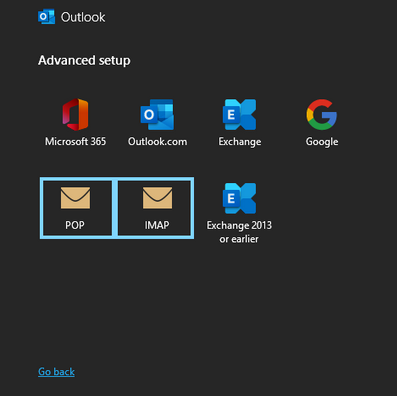
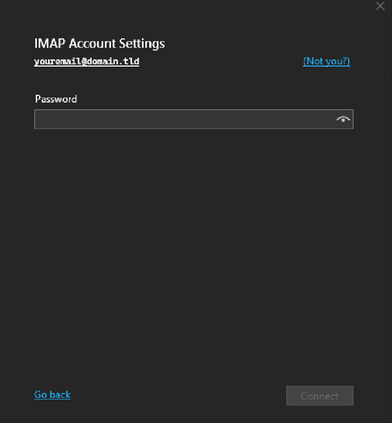
Enter the password for your domain based email and click "continue"
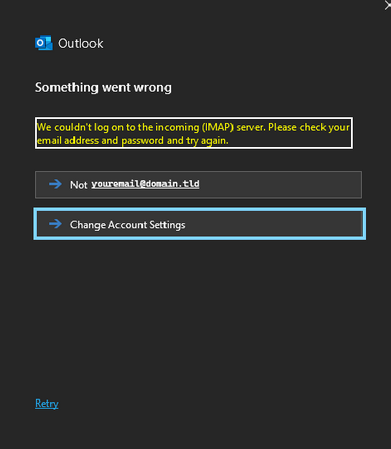
In some cases outlook classic may attempt to resolve to the servers auto-discover record resulting in an error such as the page shown in the image above.
Do not worry this is a normal occurrence when setting up a domain based email as not all auto discover records contain the proper secure email settings used by a hosting provider
Click on "Change Account Settings"
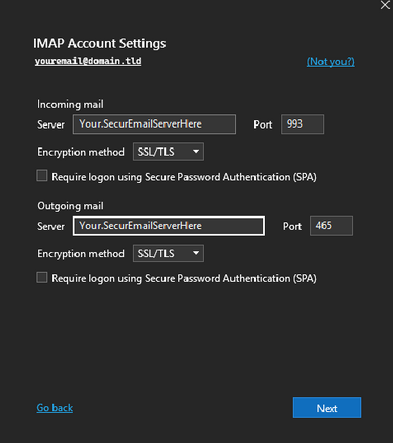
In this screen you will need to enter the incoming and outgoing server information provided to you by your email host.
Click "Next"
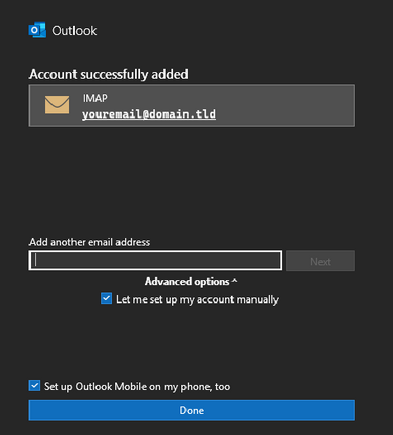
The account will then preform a check on the incoming and outgoing servers, if successful you will see the above success screen
From this screen you can also add additional accounts if needed