Adding a new account ( thunderbird )
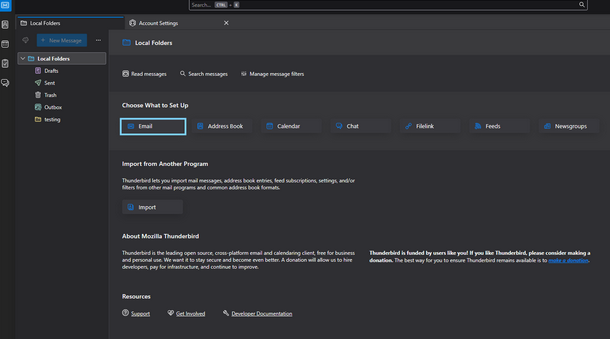
Open Thunderbird and navigate to the "Local folders tab" and click on "Email"
If accounts already exist in the Thunderbird installation navigate to "Settings" >> "Account stetting" >> "+ New Account"
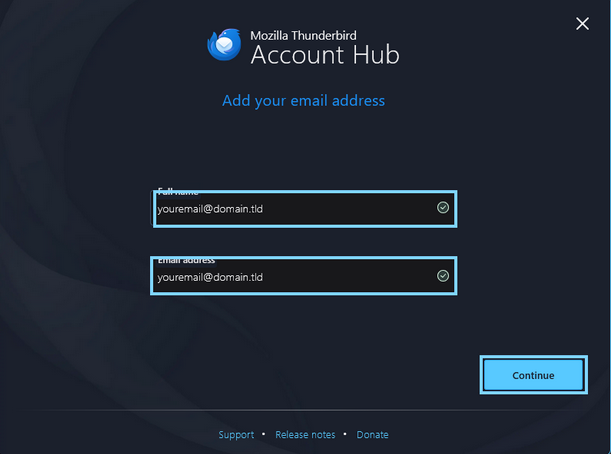
Enter the name and email address you wish to use when sending emails, then click on "Continue"
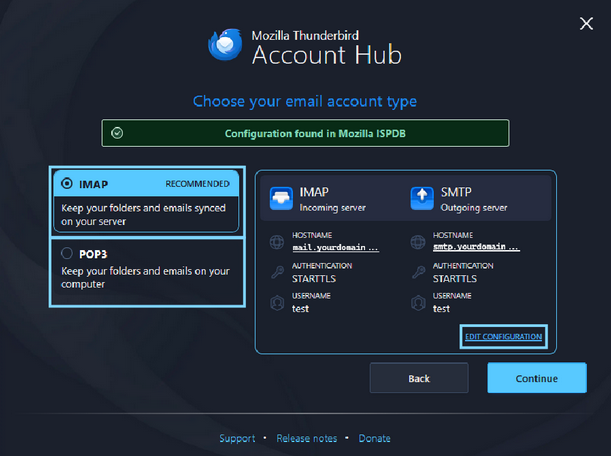
After confirming the name and email for the account select the protocol you wish to use and click on "Edit Configuration" to manually configure the server settings
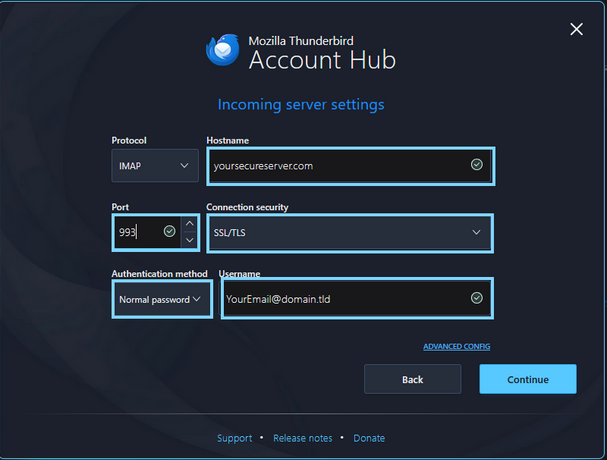
You should then be presented with the IMAP / POP3 incoming configuration screen
Enter the respective settings provided by your email host ensuring the username field is filled out with your full email address, click on "continue"
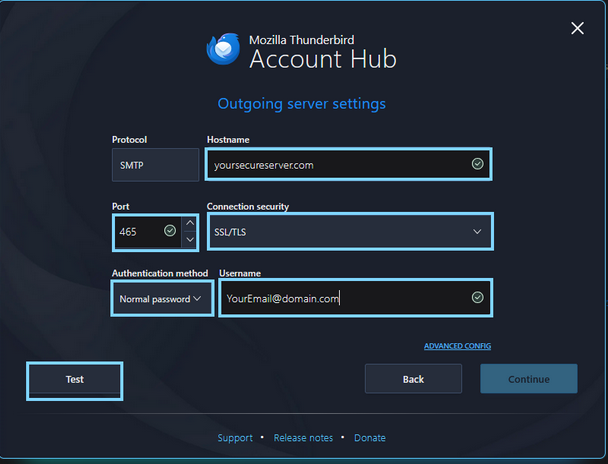
In the SMTP configuration enter the respective SMTP or outgoing server information provided by your email host
Click on "Test" to confirm the incoming/outgoing connection and then click on Continue to finalize the Configuration
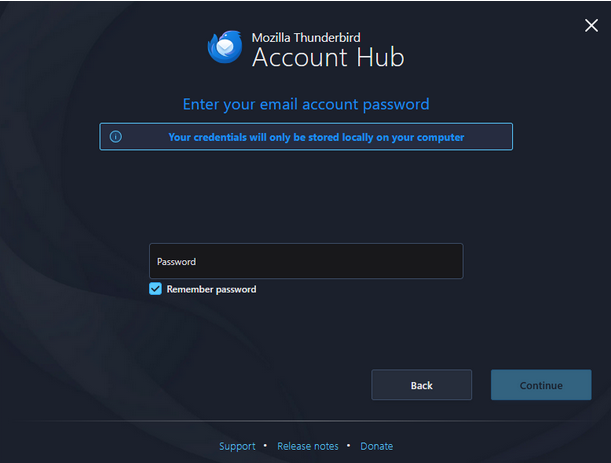
In the Final screen enter the password associated to the domain based email address that you are setting up.
Click Continue, provided the configuration is correct you should then be all set to begin using your domain based email.