Changing settings on an existing accoutn ( thunderbird )
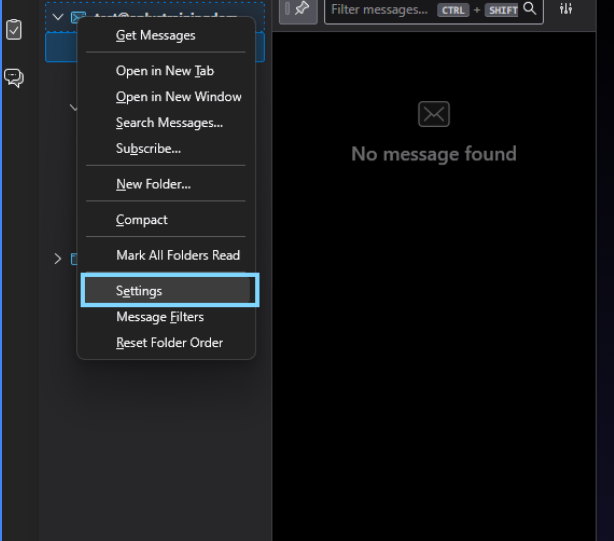
To Edit the settings on an existing account in thunderbird right click on the account you want to edit and select "Settings"
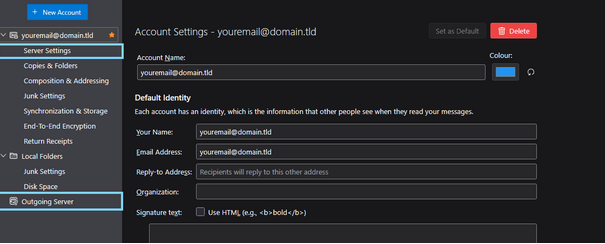
From here you will need to access 2 locations,
1 - "Server Settings" to modify your incoming email server settings ( IMAP/ POP3 )
2 - "Outgoing Server" to modify the outgoing server settings ( SMTP )
Click on "Server Settings"
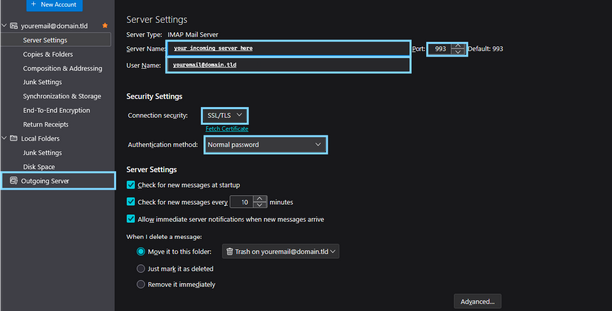
In the provided screen you will be given options for your "Server name", "User Name", "Port", "Connection Security" and Authentication method.
Configure the settings in accordance with the information provided by your email host
Once complete click on "Outgoing server"
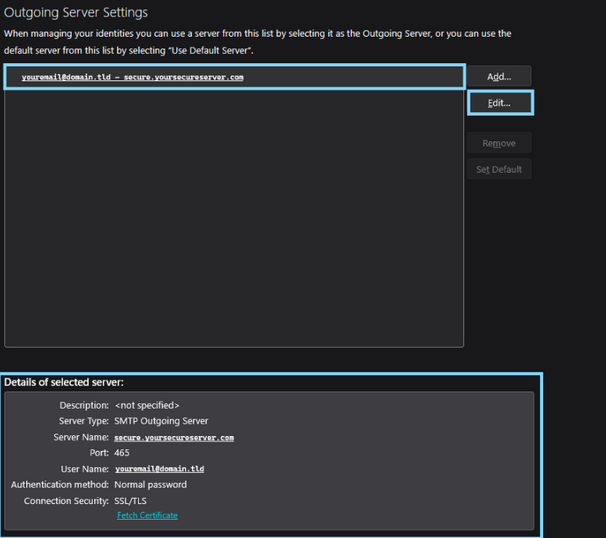
If you only have 1 account present in thunderbird the SMTP server will be selected by default, if multiple are present select the sever containing your email in the title.
Click on Edit to make changes or confirm the current settings via the SMTP preview at the bottom of the server list
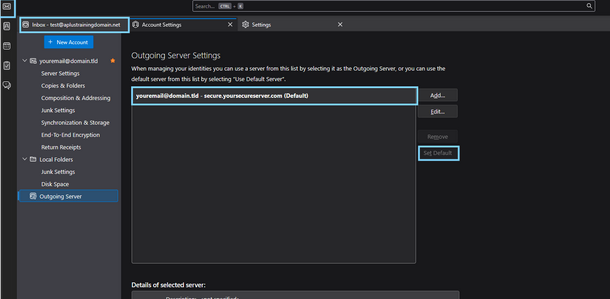
After making the nessesary edits confirming that the server settings match what has been provided by your email host, ensure the server is set as your default by selecting the server and clicking the "Set as Default option "
click on the small envelope icon in the top left or click on the
"Inbox" - youremail@domain.tld tab to navigate back to your mailbox, and begin sending emails